
Download
ARK Truck Loader for Windows
Enter your branch’s software key to download the installer, then follow the numbered steps below.
- Version 0.1.9
- Windows 10 or 11, 64-bit
- About 375 MB of disk space
- Internet connection needed
File: ARK-Truck-Loader-Setup-0.1.9.exe
Reading this on a phone? Open this page on the Windows computer that will run ARK Truck Loader, and download it there.
Heads up: when you open the file, Windows will ask “Do you want to run this file?” That’s expected. Install step 2 shows exactly what to click.
Before you start
Have these ready:
- Your branch’s software key. You need it to download the program and again to activate it. Each branch gets its own key from ARK Loading. Need a key? Email [email protected].
- A computer with Windows 10 or 11 (64-bit) and about 375 MB of free disk space.
- An internet connection. It’s needed to activate your key, for updates, and at least once every 14 days. Throughout the day, ARK Truck Loader also sends delivery files and inventory updates to ARK Loading within minutes of being saved (see Updates and your data).
- Your trucks’ measurements. The Measure Your Trucks screen in setup lists what to measure and can print a measuring sheet to take out on a clipboard, so allow time to measure. If ARK Loading sent you a truck file, you can choose it in setup instead.
Part 1
Install the program
-
Install step 1: Download the installer
At the top of this page, type your branch’s software key and click Download ARK Truck Loader. Your browser saves the file, usually in your Downloads folder.
If the download stops, click Download ARK Truck Loader again. Each click gives a download link that works for 2 hours.
The file is called ARK-Truck-Loader-Setup-0.1.9.exe and is about 115 MB.
-
Install step 2: Open the installer
When the download finishes, open ARK-Truck-Loader-Setup-0.1.9.exe. You can click it in your browser’s download list, or double-click it in your Downloads folder.
Windows will ask “Do you want to run this file?” This is expected.
Windows asks this for any program downloaded from the internet. Check that the publisher is ARK LOADING LLC, then click Run.
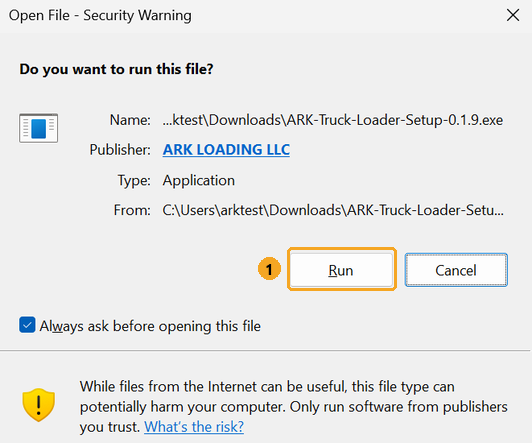
Check the publisher, then click Run. Your screen may look a little different. If Windows says “Windows protected your PC” instead, click More info, check that the publisher is ARK LOADING LLC, then click Run anyway.
Only do this for the installer you downloaded from arkloading.com. If the publisher isn’t ARK LOADING LLC, don’t run it. To double-check the file, your IT person can compare its SHA-256 checksum.
If you can’t get past this screen, ask your IT person or email [email protected].
-
Install step 3: Follow the installer’s screens
The ARK Truck Loader installer opens. Click Next, Next, then Install.
You don’t need an administrator password. ARK Truck Loader installs for the Windows user who is signed in, so install it while signed in as the person who will use it.
Create a desktop shortcut is ticked. Untick it if you don’t want one; the program is always in your Start menu.
Installing takes about a minute, including a step near the end called “Preparing ARK Truck Loader for its first start...” Let it finish.
-
Install step 4: Click Finish
On the last screen, leave Start ARK Truck Loader ticked and click Finish. The ARK picture appears right away, and setup opens a few seconds later.
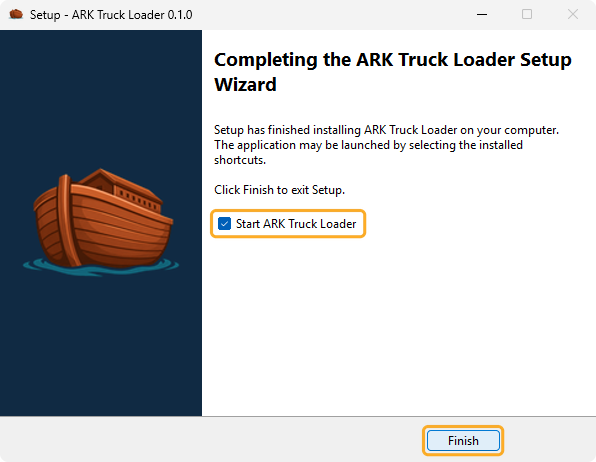
To open the program later, open the Start menu and click ARK Truck Loader.
The first time it opens, it walks you through setup (three setup steps, Part 2 below).
Keep the computer connected to the internet during setup.
Part 2
First-time setup
The first time ARK Truck Loader opens, it asks for these three things, in this order. Each setup screen shows which step you’re on, such as “Step 2 of 3.”
-
Setup step 1 of 3: Software Key
Use the software key ARK Loading gave your branch. Each branch has its own key, so use the one for this store.
- Type or paste your key. Dashes and spaces are optional.
- Check the line under the key: it names your store and branch, and which computer number this one will be.
- Tick I agree to the Terms of Service. Ticking it opens the Terms of Service for you to read. To read them again, click View Terms of Service, or read the Terms of Service here.
- Click Activate. The screen then says the computer is activated.
Activating needs an internet connection. Need a key? Email [email protected].
-
Setup step 2 of 3: Inventory
Your branch’s inventory comes with your software key, so there’s nothing to choose. Once your key is activated, this step downloads your branch’s files and then says Provided by your key. Click Next.
-
Setup step 3 of 3: Trucks
This step starts with Measure Your Trucks, which lists the four things to measure on each truck: its name, usable bed length, usable bed width, and bed height from ground.
Tip: click Print Measuring Sheet and take the sheet out to the trucks on a clipboard.
When you have the measurements, click Next. On the Trucks page, click Add Truck and type each truck’s measurements into the list. Each truck saves itself; double-click a box to change it.
If ARK Loading sent you a truck file, click Choose Truck File… at the top of the Trucks page instead and pick it, usually from your Downloads folder. Its trucks fill the list, and you can still change them.
When your trucks are in the list, click Finish Setup.
You can close setup to go and measure. It opens again each time you start ARK Truck Loader until the required steps are done.
That’s it. ARK Truck Loader is installed and set up.
Updates and your data
-
Updates install themselves
Updates download in the background and install the next time you start ARK Truck Loader, never while you’re working. Updates require an internet connection.
-
Your store’s files
Your store’s files are kept in
Documents\ARK Loading, in the Deliveries, Overflow and Trucks folders. Updates never touch them.Uninstalling keeps your trucks and settings, and removes the customer list and other files that can hold customer names. Delivery and overflow files are removed only once ARK Loading has received them.
-
What ARK Truck Loader sends to ARK Loading
Delivery files and inventory updates are encrypted and sent to ARK Loading servers for data analysis and inventory approval throughout the day, within minutes of being saved.
Covered by our Terms of Service.
For IT
For your IT person
Requirements, and details for checking the download.
- Product
- ARK Truck Loader, by ARK Loading
- Version
- 0.1.9
- Installer file
- ARK-Truck-Loader-Setup-0.1.9.exe, about 115 MB
- Download
- Only with a branch’s software key. This page sends the key to ARK Loading’s server at arkloading.com, which answers with a download link that works for 2 hours. Downloading doesn’t activate anything or use up a computer, and ARK Loading records which key downloaded the installer.
- SHA-256
5FBB3983677BF7DADB0300FBD127D6EB70EDFB510D00A2386F2127B87639D1AB- Code signing
- Code-signed by ARK LOADING LLC (Microsoft Artifact Signing, with a timestamp), as are the program and its uninstaller. When the downloaded installer is opened, Windows asks “Do you want to run this file?” and shows the publisher ARK LOADING LLC (install step 2). If SmartScreen shows “Windows protected your PC” instead, choose More info, check the publisher, then Run anyway.
- Permissions
- No administrator rights needed, and no administrator prompt. Installs for the signed-in Windows user. By default each computer works for one Windows user; ask ARK Loading if more people sign in to it with their own Windows accounts.
- Operating system
- Windows 10 or 11, 64-bit
- Graphics
- No 3D graphics driver needed. On computers without one (including Remote Desktop sessions), the program draws in software.
- Disk space
- About 375 MB
- Install location
%LOCALAPPDATA%\Programs\ARK Loading\ARK Truck Loader. Adds a Start-menu shortcut; the desktop shortcut is ticked by default and can be unticked. Takes about a minute, including a one-time preparation step so the first start is quick.- Uninstall
- Windows Settings > Apps > ARK Truck Loader > Uninstall. No administrator rights needed. Keeps the Trucks folder and the program’s settings, and removes the customer list and other files that can hold customer names. Delivery and overflow files are removed only once ARK Loading has received them.
- Internet use
- Needed to activate the software key, for updates, and for the end-of-day upload. The program must reach ARK Loading at least once every 14 days; if it can’t, it locks until it reconnects. It connects only to arkloading.com.
- Updates
- Downloaded in the background; installed the next time the program starts, never mid-session.
- Store data
Documents\ARK Loading(Deliveries, Overflow, Trucks). Never touched by updates; see Uninstall above.- Data sent
- Delivery files and inventory updates are encrypted and sent to ARK Loading servers for data analysis and inventory approval throughout the day, within minutes of being saved. Covered by the Terms of Service.
Check the download’s SHA-256
- Open Windows PowerShell from the Start menu.
- Run this command. It looks in your Downloads folder; change the path if the file was saved somewhere else.
Get-FileHash -Algorithm SHA256 "$env:USERPROFILE\Downloads\ARK-Truck-Loader-Setup-0.1.9.exe" - Compare the Hash it prints with the SHA-256 above. Upper- and lower-case letters don’t matter.
- If the values don’t match, don’t run the file. Download it again, or email [email protected].
Need a software key or help?
Email [email protected]. Tell us which branch you’re setting up, and which part and step you’re on.